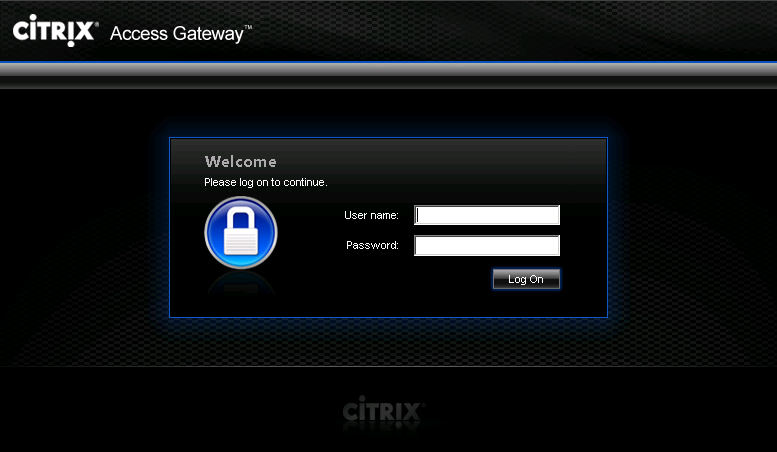
AGEE black theme
With the Citrix NetScaler it is possible to change the theme of the Access Gateway Enterprise Edition (AGEE) default logon page so it fits better with the new Citrix Receiver and StoreFront theme. The default theme that runs on the NetScaler is the Black theme. In order to have the same look and feel between the AGEE logon page, the StoreFront site and the Citrix Receiver, we need to implement the Citrix Receiver or Green Bubble theme on the NetScaler AGEE.
As of the 10.0.71.6014.e release the NetScaler comes with a great UI Customization process. You can read all about this process in this Citrix blogpost.
For the older versions, like the one I run in my homelab (which runs version 10.0.71.6.nc), you can follow the steps described below to change the default theme on your NetScaler.
The described steps are mostly based upon this blogpost from Jarian Gibson that I found, which describes all the performed steps to take in great detail. So all the credits go to Jarian!
Changing the Access Gateway theme
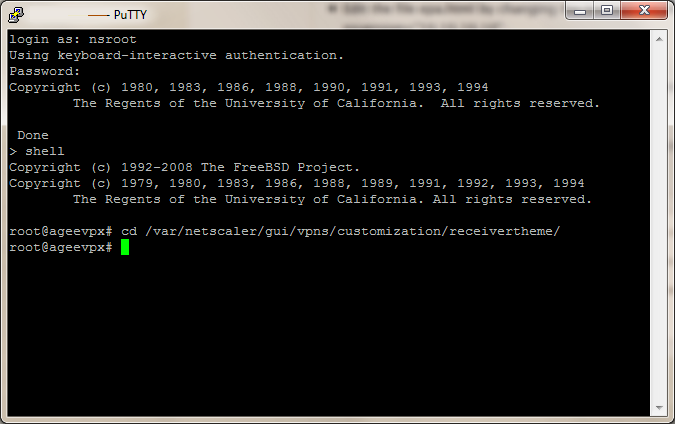
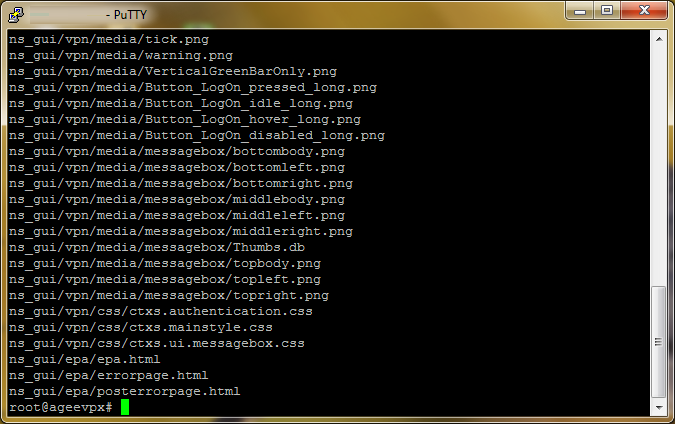
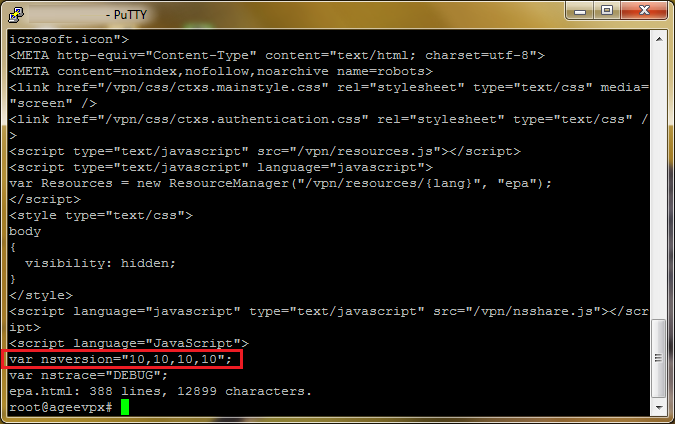
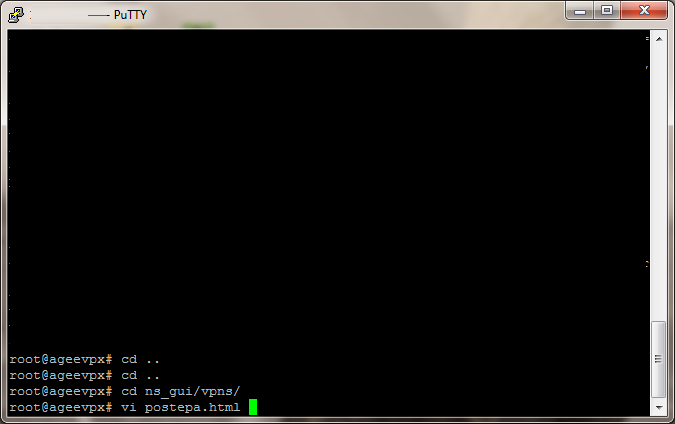
To change from the default black theme on the NetScaler AGEE (build 10.0.71.6.nc) to the Receiver (or Green Bubble) theme, you’ll have to perform a couple of actions:
| screendump | explanation |
|---|---|
 PuTTY |
|
 PuTTY |
|
|
|
 PuTTY |
|
|
|
 PuTTY |
|
|
|
|
|
And with these new settings you should have a consistent presentation of the Receiver theme on all the pages your user passes to get from logon page to his (or her) published resources in the application store.
This post is part of a serie of multiple posts to fully cover the configuration of the AGEE VPX:
Out with the old, in with … AGEE VPX (part 1)
Out with the old, in with … AGEE VPX (part 2)
Out with the old, in with … AGEE VPX (part 3)
Changing the NetScaler Access Gateway theme
The following sources have been used to create this post:
Citrix Blog: Citrix Access Gateway – UI Theme Customization
Citrix Blog: Green Bubble Theme for Citrix NetScaler
Jarian Gibson: Apply Citrix Receiver Theme to NetScaler/Access Gateway 10
vi Editor Commands

Esther has been working in different roles and functions as an IT consultant ever since she finished her Masters degree in Computer Science in 1997. She has worked as a web developer, database administrator, and server administrator until she discovered how Server-Based Computing ( SBC ) combined servers, desktops, and user experience in one solution. Esther has been specializing in virtualization solutions such as SBC, VDI, application, and server virtualization for over eight years now and is currently working as a Senior Consultant at PepperByte, where she designs and implements Citrix® solutions for both small-business and large-enterprise infrastructures scaling from 100 to 15,000 users.
In january 2014 her first book Citrix XenApp 6.5 Expert Cookbook was published by Packt Publishing.
Esther is awarded as a Citrix Technology Professional (CTP) from 2015 - 2017.
Esther is awarded as a Microsoft Most Valuable Professional (MVP) in 2017.
Esther is a Citrix Certified Expert – Virtualization (CCE-V), Citrix Certified Professional – Mobility (CCP-M), Citrix Certified Professional – Networking (CCP-N) and RES Software Certified Professional (RCP).